Setup a Game
Choose your teams, period format, and scoring mode before the first whistle.
Choose your teams
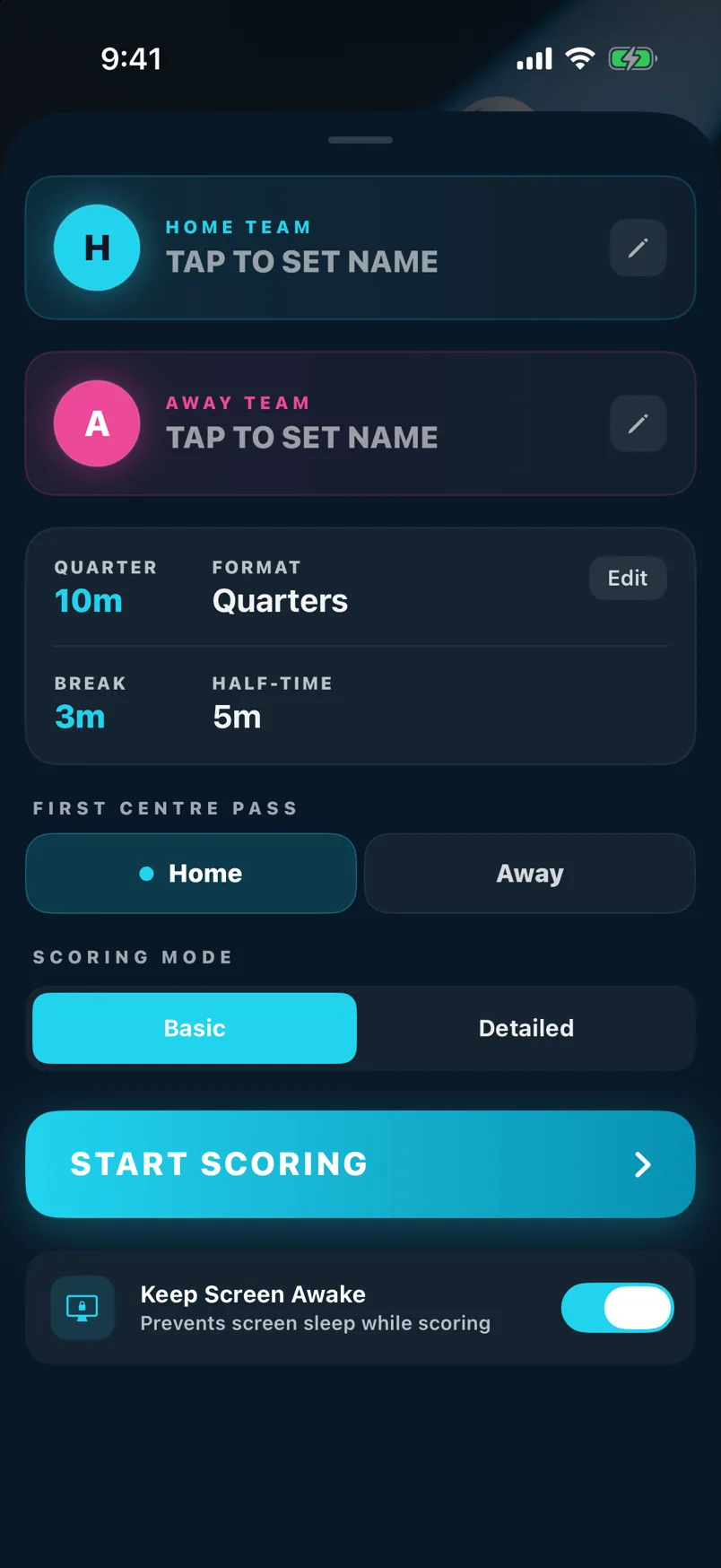
Tap the team name fields at the top of the setup sheet. You can type a name directly, or tap Saved Teams to pick from a team you've used before. Each team has a colour — tap the colour swatch to change it.
Pick from Saved Teams
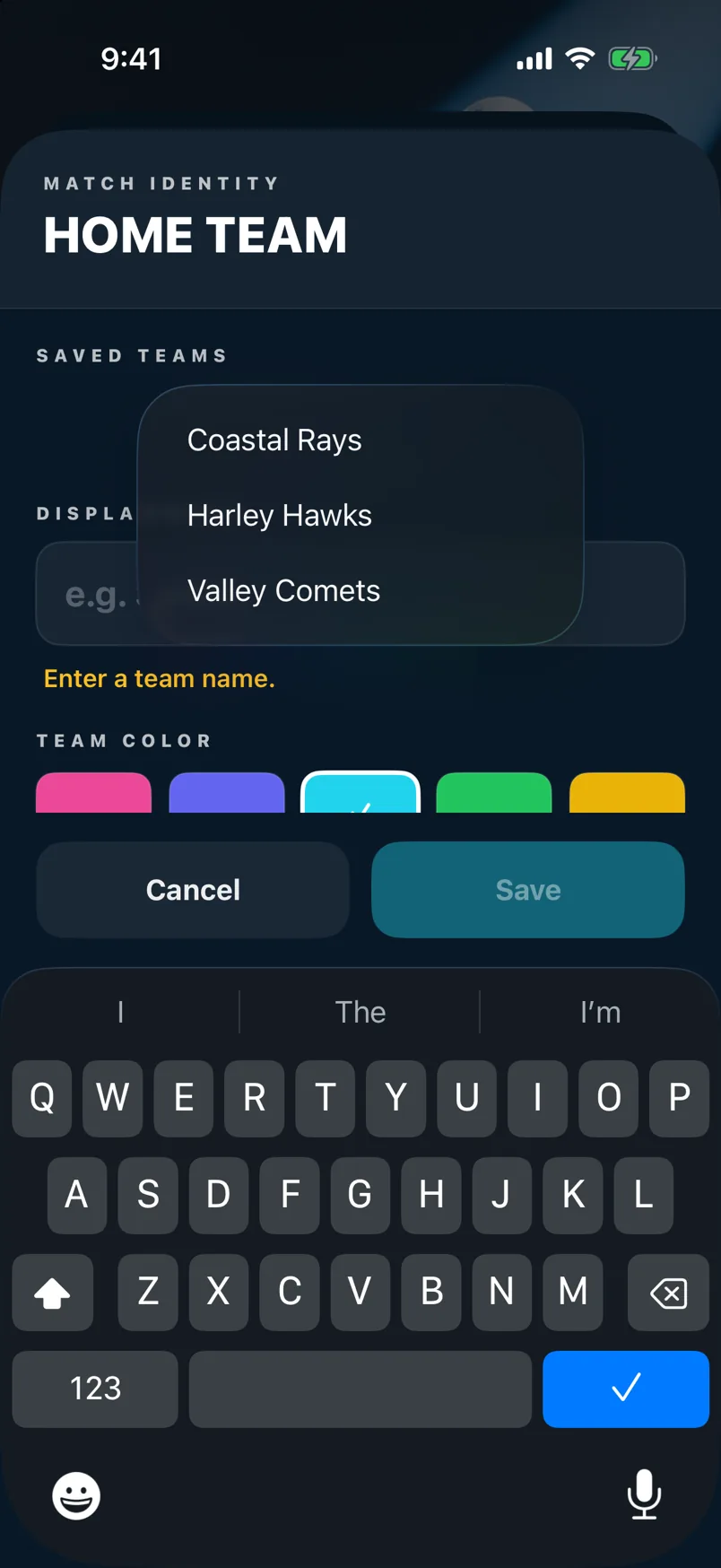
Tap Saved Teams to open your team list. Previously used teams appear here so you don't have to type the name again. Select one and it fills in with the name and last colour used.
First centre pass & scoring mode
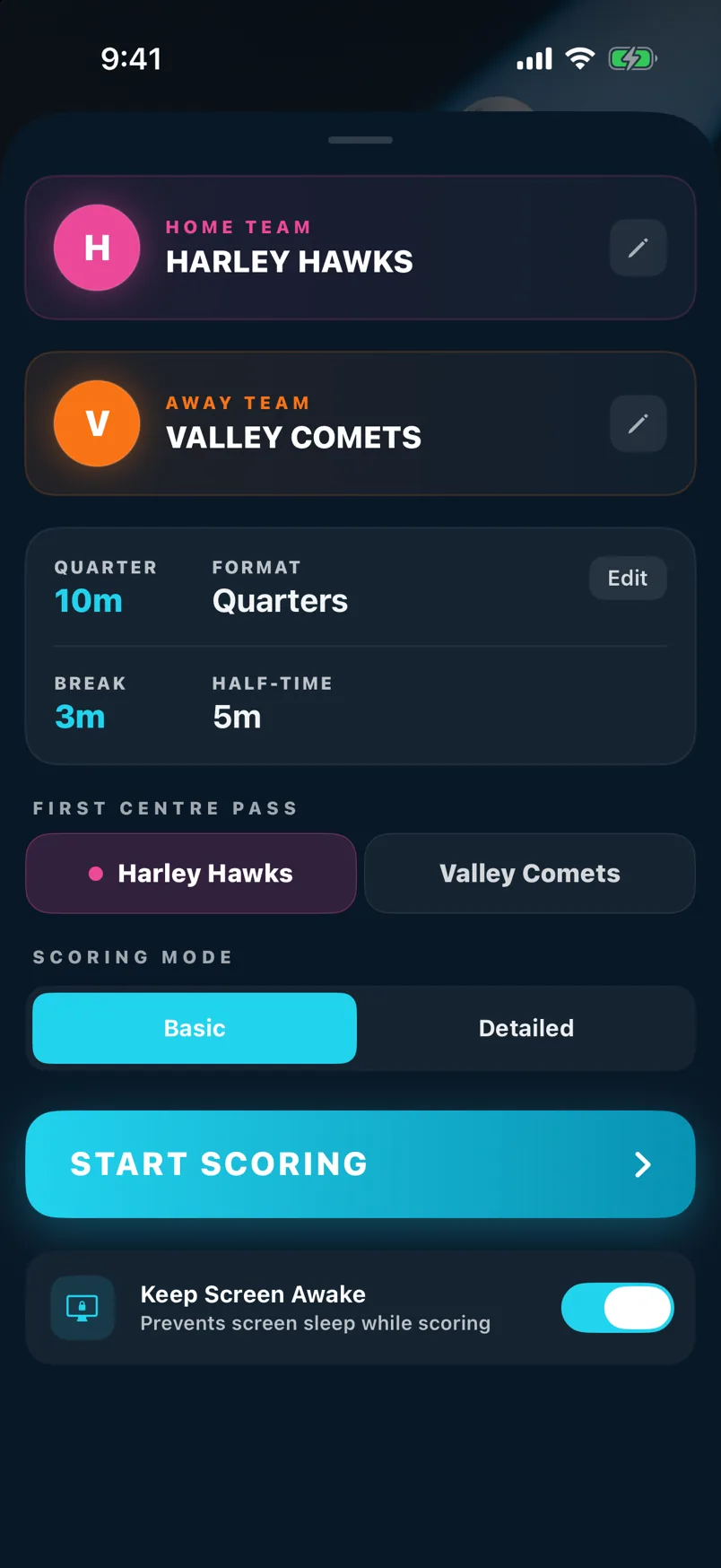
Choose which team wins the first centre pass. Then select your scoring mode — Basic records goals only, while Detailed also tracks missed shots and goal positions. You can change scoring mode in Settings later.
Period type and length
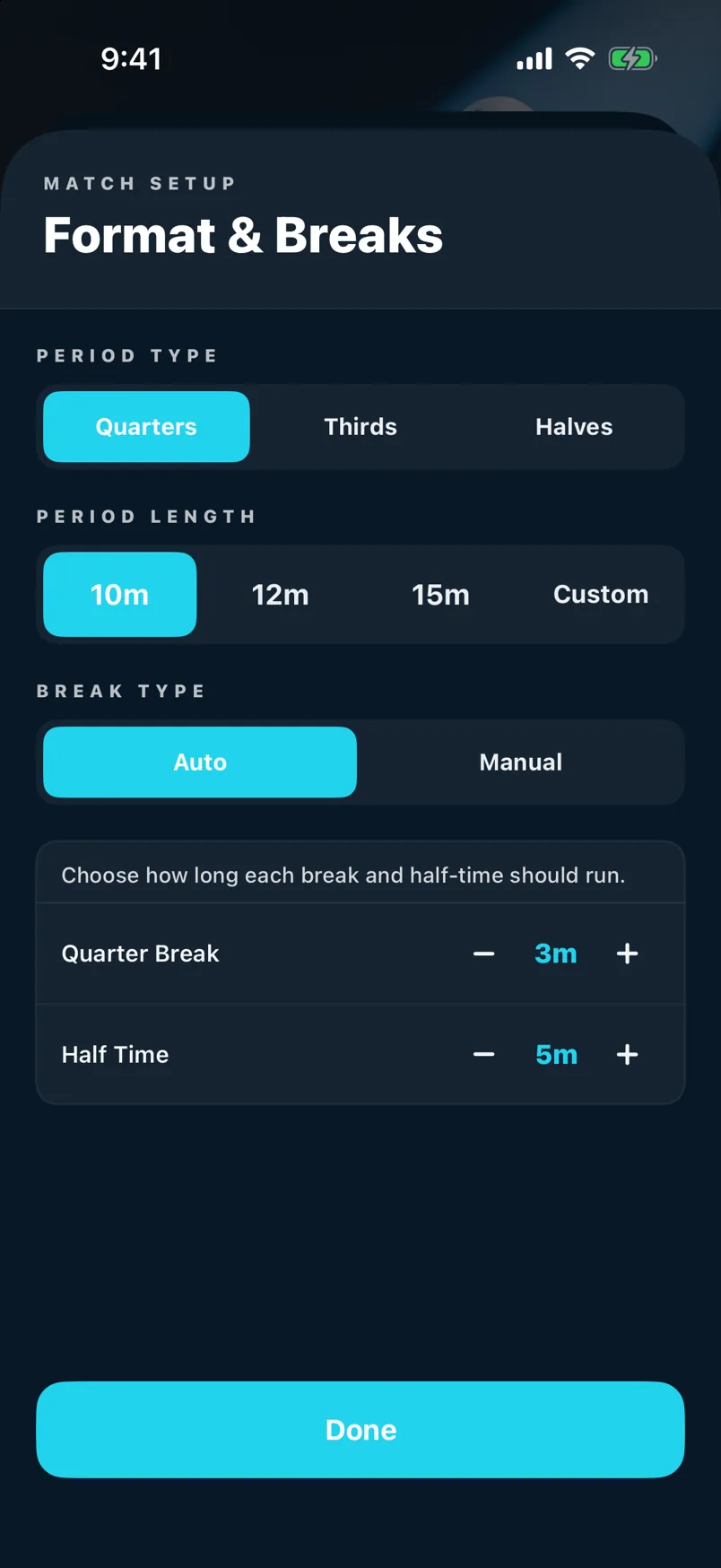
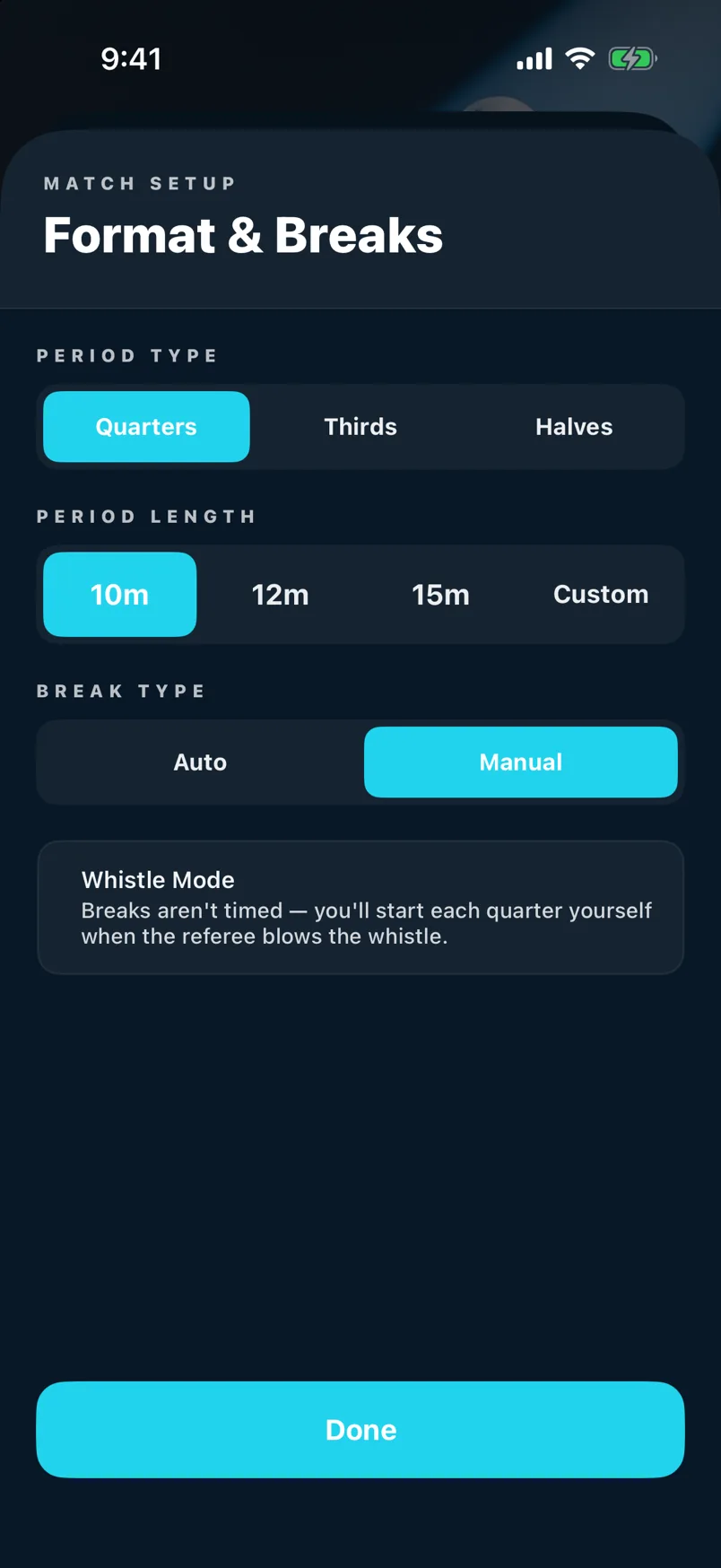
Set the number of quarters (or halves) and the minutes per period. The timer counts down during play and pauses automatically at the end of each period.
Breaks between quarters
Choose how breaks work: Auto starts the next quarter automatically after the break timer, Custom lets you set a specific break length, or Whistle Mode pauses and waits for you to tap Start to begin the next quarter manually.
Start from a fixture
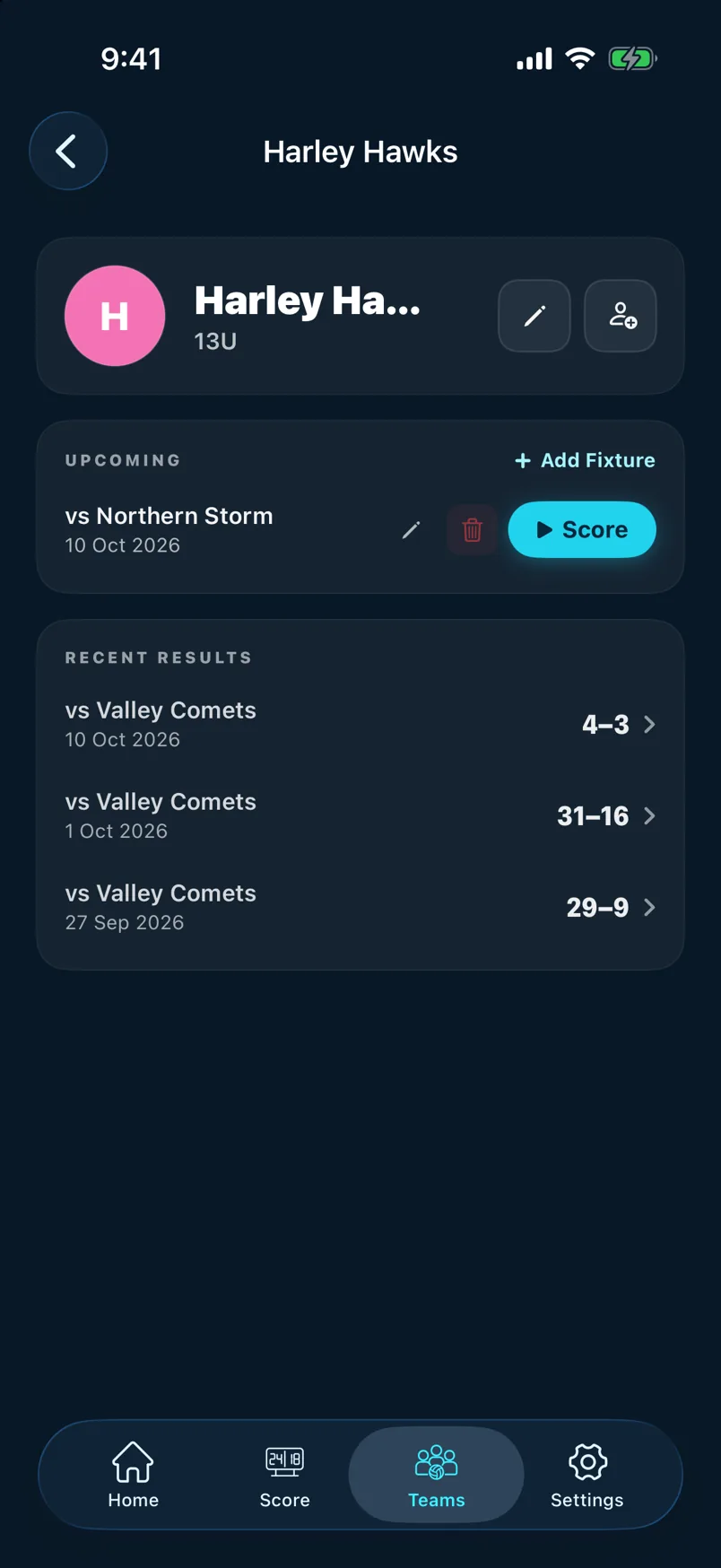
If your team uses the fixture list, your upcoming games appear under Fixtures on the home screen. Tap Score next to a fixture to pre-fill both team names and jump straight into the setup sheet.
Still stuck? support@scozo.live