Go Live
Share a live scoreboard with parents and fans — via code, QR, Lock Screen, CarPlay, or Dynamic Island.
Open Go Live
During a live game tap the Go Live button (the broadcast icon in the match header). The sharing sheet opens showing your unique 6-digit code, a QR code, and a live viewer count.
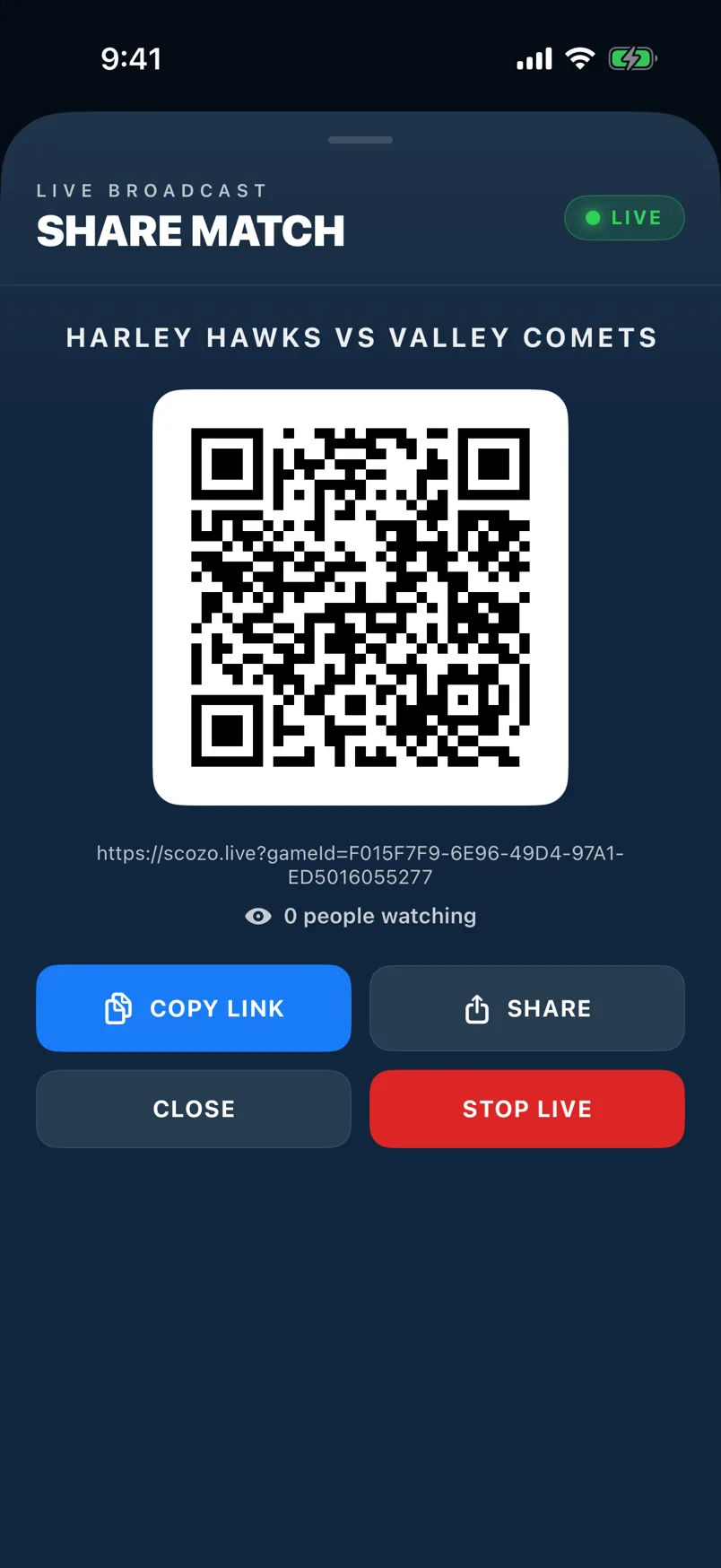
What fans see
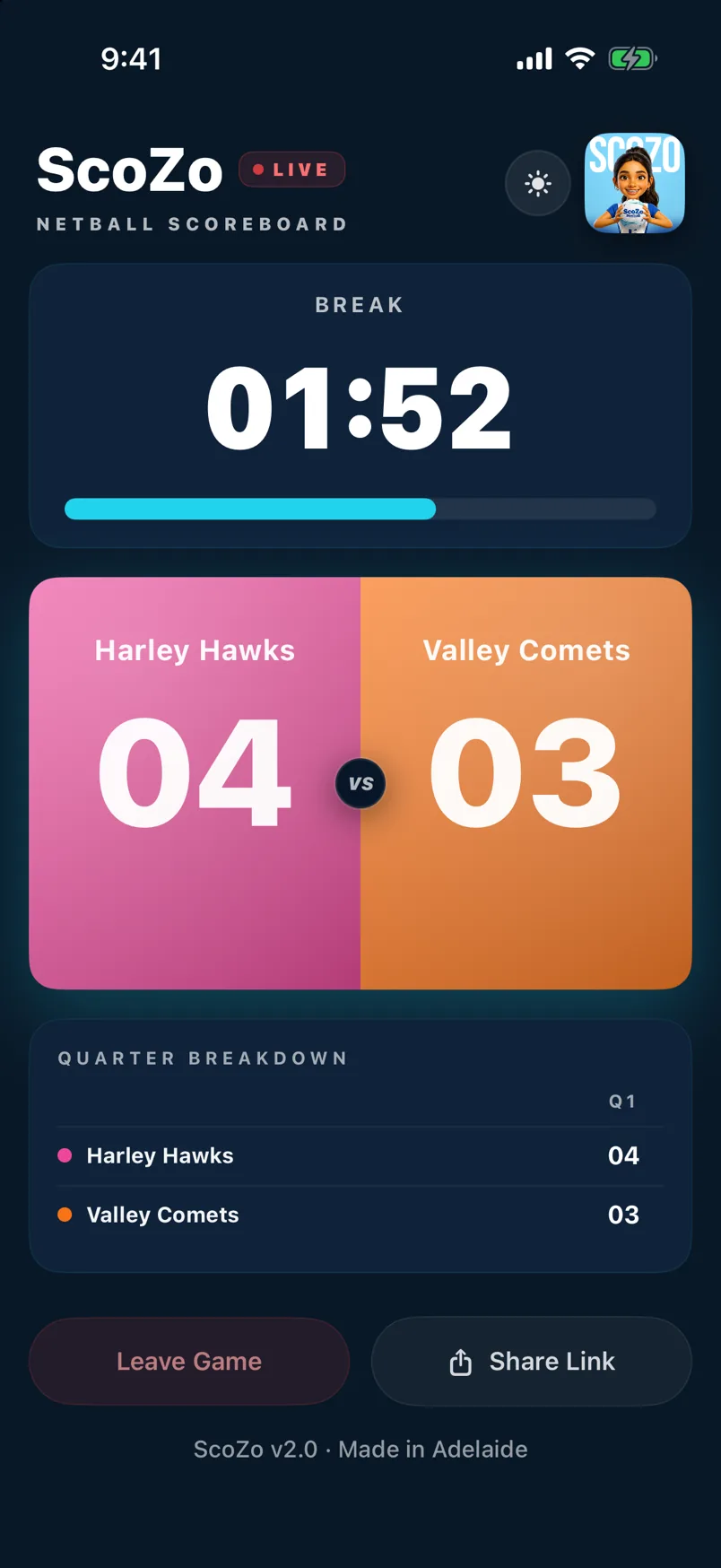
Fans open ScoZo, tap Follow a Game, and enter the code or scan the QR. They see a live scoreboard with the score, quarter, timer, and every goal as it happens — no account needed. You can also send them the viewer link directly.
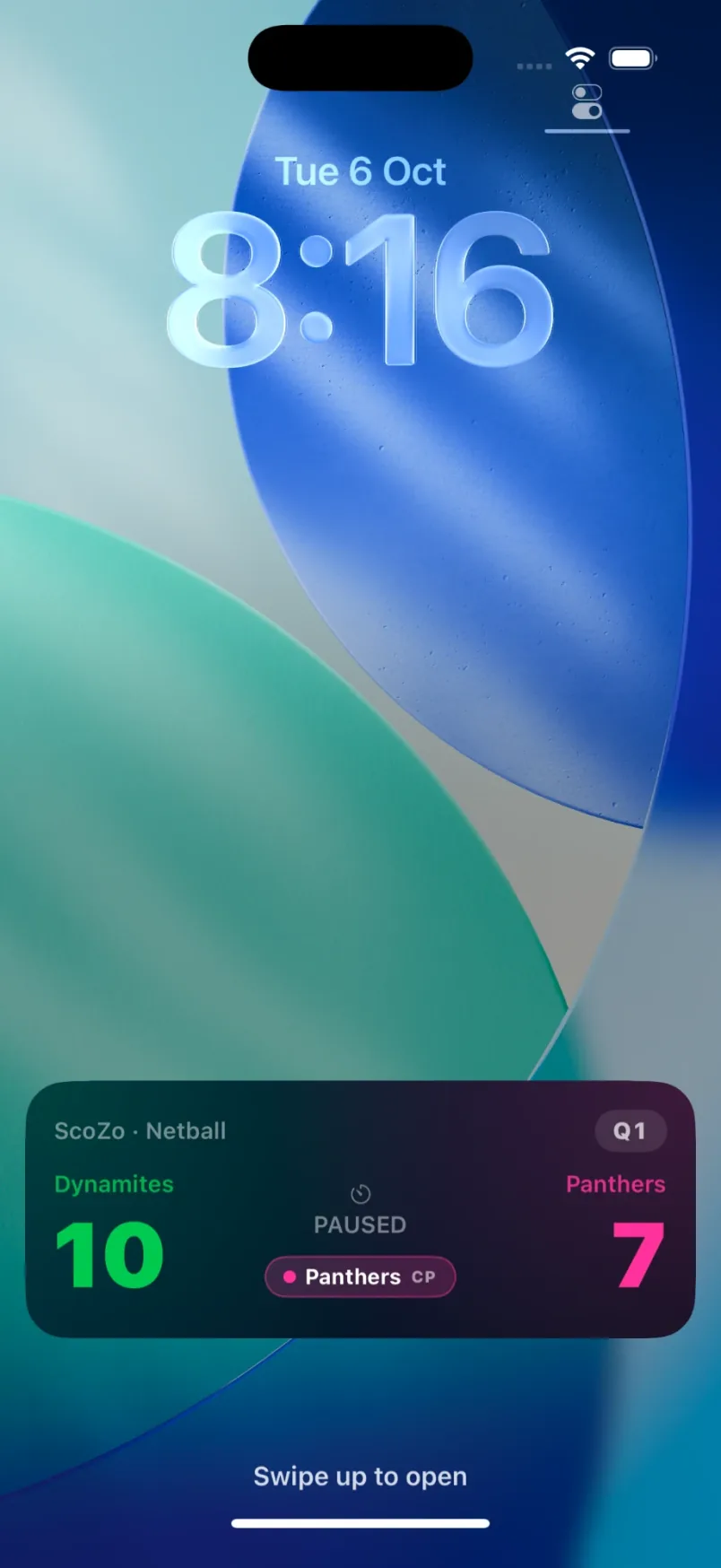
Lock Screen Live Activity
Once a game is live, a Live Activity appears on your Lock Screen showing the current score, quarter, and timer. You can check the score without unlocking your phone — useful when you're watching from the sideline.
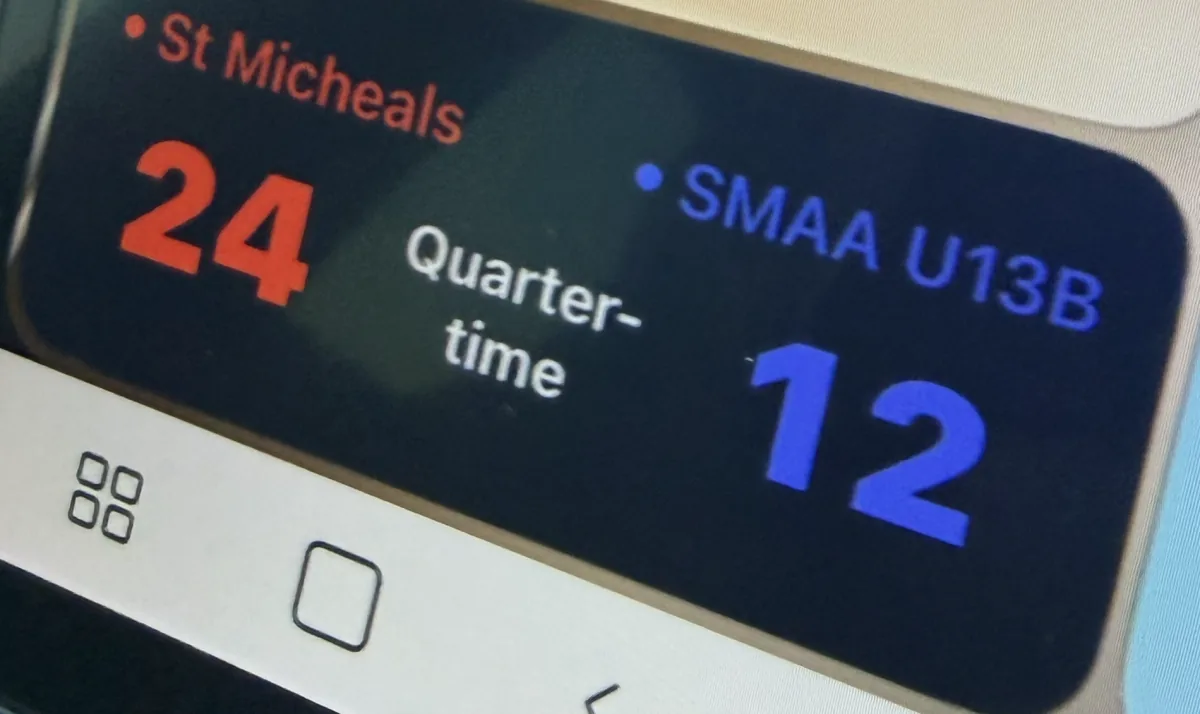
CarPlay
If your car has CarPlay, the live score also appears on the CarPlay dashboard. The tile shows both teams, their scores and the state of the game, such as Quarter-time, so you can follow a game on the way to or from the court without picking up your phone.
Dynamic Island (iPhone 15 Pro and later)
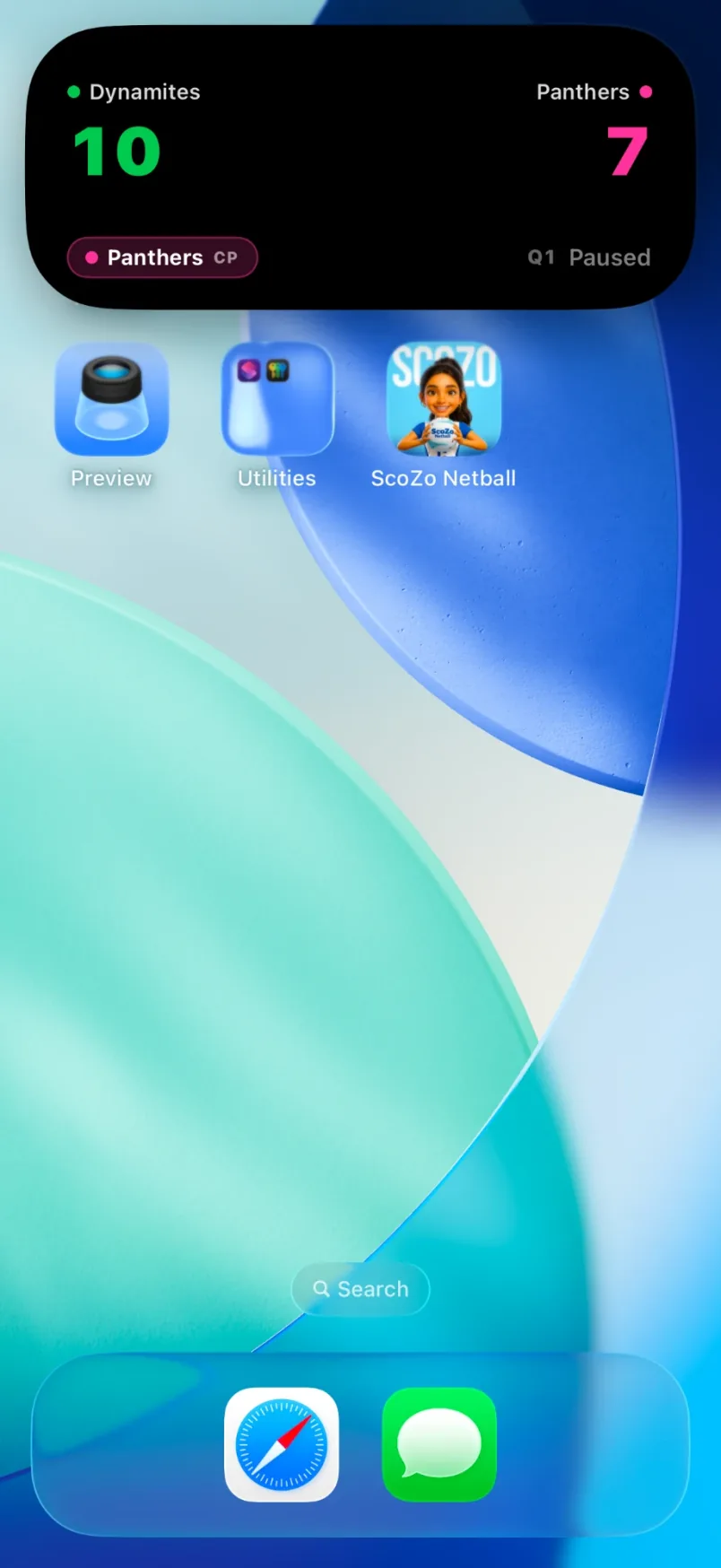
On iPhones with the Dynamic Island, the score appears as a compact pill at the top of the screen when the app is in the background. Long-press the island to expand it and see more detail — team names, quarter, and timer.
Still stuck? support@scozo.live